


Quick Parts in Word: The productivity tool nobody uses
to your Office files.
If this article has made you rethink how your business uses Word, Excel or PowerPoint, ZOARC Creative can help create polished, brand-aligned templates for letterheads, reports, proposals, bids and presentations.


Trusted for Microsoft Office template and formatting support
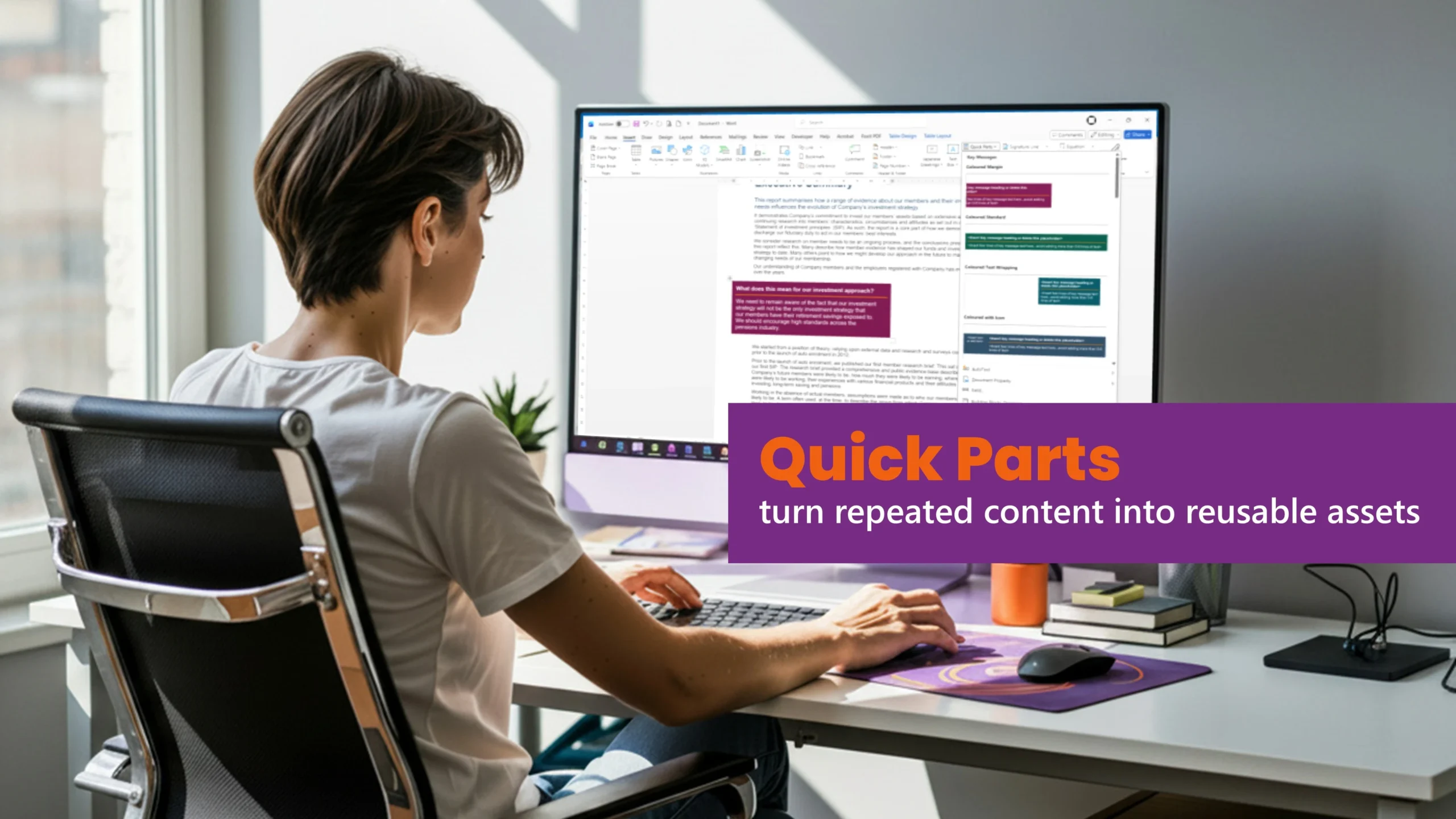
Most people using Microsoft Word know how to copy and paste.
Far fewer know how to reuse content properly.
That is exactly where Quick Parts in Word becomes useful. It is one of those features that has been sitting inside Microsoft Word for years, but many teams either do not know it exists or do not use it in a structured way.
At its simplest, Quick Parts lets you save reusable pieces of content and insert them again whenever needed. This could be a paragraph, a table, a disclaimer, a standard clause, a biography, a report section, a signature block, a cover page element or a pre-formatted layout.
Microsoft describes Quick Parts as a way to create, store and reuse pieces of content, including AutoText and document properties. Microsoft also refers to these saved items as building blocks, which can be managed through the Building Blocks Organizer.
In plain English, Quick Parts is a reusable content library inside Word.
And for teams that create reports, proposals, policies, pitch documents or formal business documents, it can save a lot of time.
Quick Parts is not just a shortcut for repeated text. It is a way to control reusable content, formatting and consistency inside Microsoft Word.
The reason Quick Parts matters is simple. Most business documents are not created from scratch.
A proposal may reuse the same introduction, credentials, case studies, methodology and terms. A report may reuse the same tables, disclaimers, definitions and appendix sections. A policy document may reuse approved wording, contact details, responsibilities and review statements.
The problem is not that teams reuse content. The problem is how they reuse it.
In many organisations, users copy content from old documents. Someone opens a previous proposal, copies a section and pastes it into the new file. Another person lifts a table from an old report. Someone else copies a disclaimer from a document that may already be out of date.
That feels quick at the time, but it often brings hidden problems with it.
Old documents can carry outdated branding, broken styles, inconsistent spacing, incorrect fonts, manual formatting and content that should no longer be used. Before long, the new document starts to look like a patchwork of different files.
Quick Parts gives teams a cleaner way to reuse approved content.
Instead of searching through old documents, users can insert pre-approved content directly from Word. Microsoft’s AutoText feature, which sits within Quick Parts, allows users to save selected content as a reusable entry and insert it again from the Quick Parts menu.
This is especially useful for teams that produce structured documents regularly, such as:
Proposal teams that need reusable service descriptions, credentials, assumptions and case studies.
Consultancy teams that need standard methodology sections, report tables and recommendation blocks.
Legal and compliance teams that need approved wording, clauses and disclaimers.
Marketing teams that need consistent biographies, boilerplate copy and brand-approved messaging.
Operations teams that need repeatable policy wording, process notes and internal document sections.
Quick Parts can also preserve formatting when the content is saved correctly. Microsoft’s guidance notes that, to store paragraph formatting such as indentation, alignment, line spacing and pagination, the paragraph mark needs to be included in the selection.
That detail is small, but important.
If Quick Parts are created carelessly, they can become another source of formatting problems. But when they are built properly, using the right Word styles and structure, they become a powerful extension of a professional Word template.
The best Quick Parts are not copied from finished documents. They are designed, styled and tested as reusable building blocks.
A good Quick Parts library can contain much more than basic text snippets.
It can include pre-formatted tables for risks, actions, responsibilities, fees or project summaries. It can include standard report sections with headings, body text and placeholder prompts. It can include call-out boxes, quote blocks, biography layouts, appendix sections, terms and conditions, sign-off blocks and reusable page components.
This is where Quick Parts becomes particularly valuable in template development.
A Word template does not always need to contain every possible section by default. In fact, adding too much content to the main template can make it heavy, confusing and harder for users to work with.
A better approach is often to keep the main template clean and then use Quick Parts for optional content.
This means the user can start with a simple document and insert only the pieces they need. For example, they might add a landscape table section, a credentials page, a project profile, a disclaimer, a case study or a standard appendix.
The user gets flexibility, but the organisation keeps control.
This is the difference between a document template and a document system.
Microsoft Word also supports building block controls in forms and templates, allowing users to choose from specific blocks of text where different boilerplate wording may be required depending on the document purpose.
For more advanced templates, this can help create a guided document experience. Instead of asking users to find and paste the right wording manually, the template can be structured so they choose from approved options.
That is a much better starting point than asking every user to remember where the latest content lives.
Copying from old documents feels quick. Quick Parts is what makes reusable content controlled.
Of course, Quick Parts is not a magic fix.
It needs proper planning.
The entries need clear names. The categories need to make sense. The content needs to use the correct Word styles. The building blocks need to be tested in real documents. If the template is being used across a team, the Quick Parts also need to be stored and distributed in a way that users can access reliably.
This is where many organisations struggle.
Word includes the feature, but the feature alone is not enough. The real value comes from deciding what should be reusable, how it should be formatted, who controls it, and how it should be updated over time.
A good Quick Parts setup should answer practical questions:
Which sections do users repeat most often?
Which wording needs to be approved or controlled?
Which items should be editable after insertion?
Which items should remain fixed?
Should the content sit in the main Word template or in a separate building blocks file?
How will future updates be managed?
How will users know which entry to choose?
Without that structure, Quick Parts can quickly become another messy gallery of half-useful snippets.
But with the right setup, it can reduce repetitive formatting, improve document consistency and help teams avoid working from outdated files.
For many organisations, the biggest opportunity is not simply showing users where the Quick Parts button is. It is designing a reusable content system that works with the Word template, the brand, the writing process and the way people actually create documents.
That is why Quick Parts deserves more attention.
It is already built into Word. It does not require a separate platform. It can support better governance, cleaner formatting and faster document production.
And for a tool that most people ignore, it can make a surprisingly big difference.
If your team keeps copying from old reports, proposals or policy documents, the problem may not be the users. The problem may be that the reusable content has never been properly built into the template system.
At ZOARC Creative, we design and build professional Microsoft Word templates that help teams create better documents with less formatting frustration.
That can include Quick Parts libraries, reusable content sections, branded tables, report layouts, proposal components, style systems, content controls and practical user guidance. The aim is not just to make the document look good, but to make it easier for real users to work with every day.
If your team is still copying content from old files, it may be time to turn that repeated content into a smarter, easier-to-use Word template system.
Need branded Word templates that are easier for your team to use?
ZOARC Creative designs and builds Microsoft Word templates, Quick Parts libraries and reusable document systems that help teams create consistent documents with less formatting frustration.
Book a call to discuss how your Word templates could work better for your team.
Explore more...

- ±9 minutes read

- ±7 minutes read
- ±5 minutes read

- ±5 minutes read
- ±6 minutes read
- ±10 minutes read