


Slide Masters vs Slide Libraries: What’s best for your organisation?
to your Office files.
If this article has made you rethink how your business uses Word, Excel or PowerPoint, ZOARC Creative can help create polished, brand-aligned templates for letterheads, reports, proposals, bids and presentations.
Trusted for Microsoft Office template and formatting support
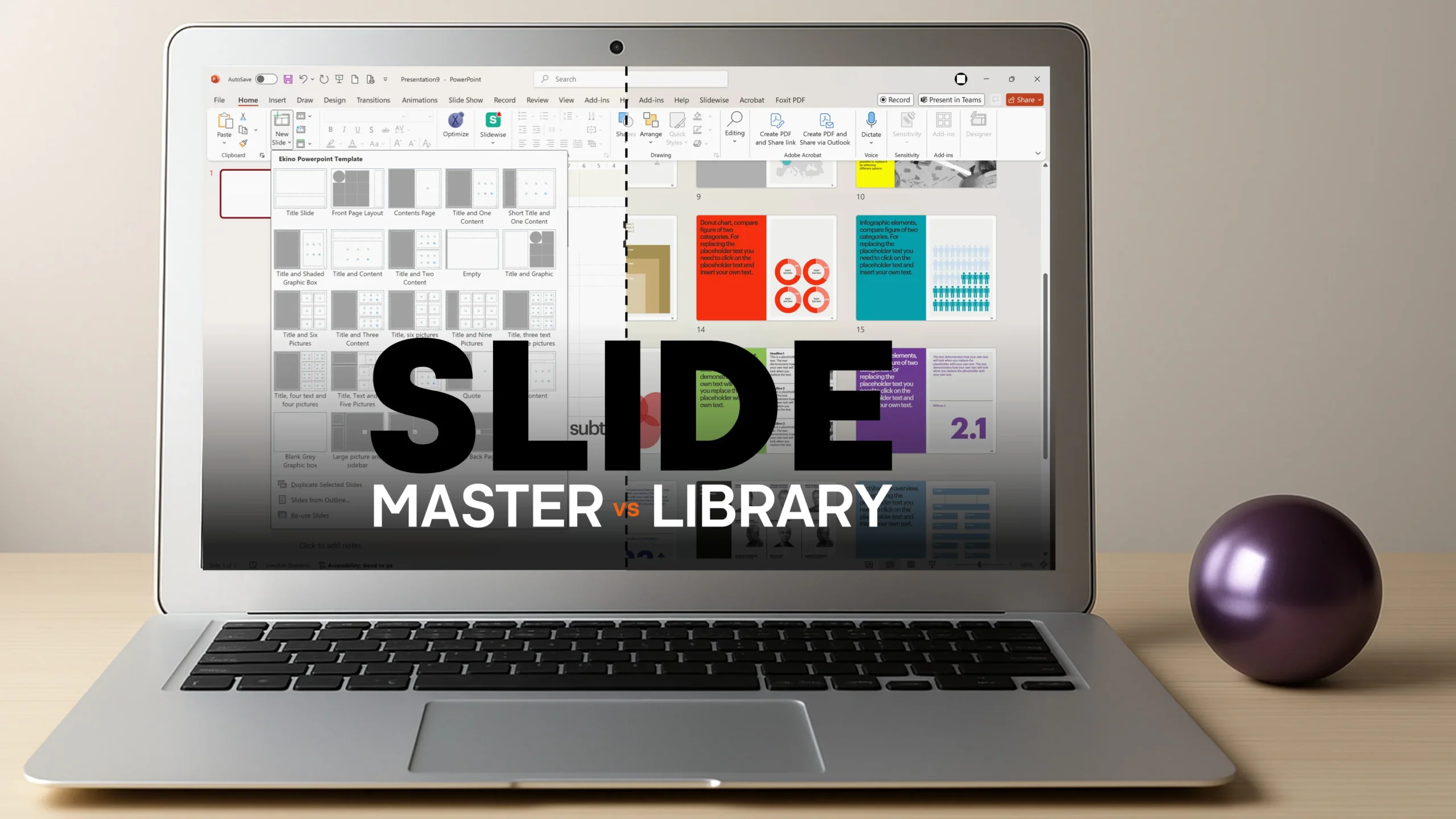
For many organisations, PowerPoint is part of everyday business communication. Presentations are used for pitches, reports, proposals, case studies, internal meetings, training and stakeholder updates. Yet the way those presentations are built can vary enormously from one organisation to another.
One of the most common questions when developing a corporate PowerPoint template is whether content should sit within the Slide Master or be provided through a Slide Library.
At first glance, the answer might seem simple: put as many useful layouts as possible into the Slide Master and give users plenty of choice. In practice, that can create as many problems as it solves.
A good PowerPoint template is not about giving users every possible option. It is about giving them the right options, in the right place, with as little friction as possible.
Microsoft describes the Slide Master as the central place for controlling elements such as fonts, images and layouts across a presentation. Individual layouts can then contain different placeholder configurations for particular types of content.
A Slide Library works differently. Rather than defining the structure of a new slide, it provides finished or partially finished slides that users can reuse. These might include case studies, company credentials, team profiles, charts, timelines, process diagrams or regularly used corporate information.
A well-built Slide Master should provide structure, not an endless catalogue of every slide the organisation has ever created.
The comparison highlights that both approaches solve different problems. Slide Masters excel at enforcing visual consistency across every deck, while Slide Libraries add speed by allowing users to reuse content that would otherwise be rebuilt from scratch.
Slide Master — where it works best
The greatest strength of a Slide Master is consistency. Layouts can control placeholder positions, title formatting, fonts, colours, logos and other recurring elements. Users can insert a new slide, choose the appropriate layout and begin adding content without having to rebuild the design.
That makes master layouts particularly useful when an organisation needs to create the same type of slide repeatedly.
A good example might be an investment bank producing case studies or transaction credentials. If every case study follows broadly the same structure — perhaps a title, client or sector information, an image, supporting statistics and a short description — creating a dedicated layout in the Slide Master can be extremely efficient.
The user inserts the layout, clicks to add an image, types into the predefined placeholders and moves on.
The same principle can apply to:
- Case studies and deal credentials
- Senior stakeholder or team profiles
- Curriculum vitae and biography slides
- Product or service profiles
- Regular financial or performance reporting layouts
- Repeated project summary slides
If a team creates dozens of these slides every month, the layout has earned its place in the Slide Master.
But that does not mean every conceivable slide should become a layout.
One of the biggest mistakes in corporate PowerPoint template development is creating an enormous Slide Master containing dozens — sometimes hundreds — of variations.
Users rarely have the patience to scroll through a very long Layout gallery looking for the perfect option. When faced with too much choice, many simply select something that looks vaguely suitable and then start placing text boxes, images and shapes over the top.
The template technically contains the correct layout, but if nobody can find or understand it, it is not solving the problem.
The best Slide Master is not necessarily the one with the most layouts. It is the one users can understand and navigate quickly.
There is also a maintenance consideration. A master layout is more than a finished-looking slide. Placeholders need to be positioned and formatted correctly, objects need to be layered appropriately, and the overall structure needs to continue working when layouts are changed or reapplied.
As a template evolves, existing presentations also need to be considered. Removing or substantially restructuring layouts can create complications for legacy presentations that were built against an earlier version of the template.
This is why adding another master layout should be a deliberate decision rather than the default response every time somebody asks for a new slide design.
Slide Library — where it becomes more useful
A Slide Library solves a different problem.
Imagine a presentation contains an attractive timeline, a detailed organisation chart, three case-study options, several infographic slides and a collection of sophisticated charts. Those slides may be extremely useful, but that does not automatically mean each one needs its own master layout.
If the content is used occasionally rather than repeatedly, it can make far more sense to provide it as a finished reusable slide.
This gives users something they can duplicate, adapt and populate without adding another choice to the Layout menu.
Microsoft itself supports the principle of reusing slides from another presentation: imported slides can either adopt the destination presentation’s formatting or retain their original formatting. Microsoft also notes that an imported slide is a copy, so subsequent edits do not change the original source slide.
In a corporate environment, that makes governance particularly important. A Slide Library should not simply become a folder full of old presentations. It should contain curated, approved and clearly organised content.
Typical Slide Library content might include:
- Standard company overview slides
- Credentials and case studies
- Timelines and roadmaps
- Process diagrams
- Organisation charts
- Data-heavy tables
- Charts and dashboards
- Maps and geographic slides
- Team structures
- Quote or key-message slides
- Frequently reused visual compositions
A library can also be easier to update when the design itself changes. A particular case-study slide or diagram can be revised and replaced without modifying the entire PowerPoint template or introducing another layout into the master.
That separation is useful: the master controls the presentation system; the library provides reusable content within that system.
Slide Master vs Slide Library: the practical difference
Slide Master
- Best for repeatable structures where users regularly create new slides containing different content.
- Strong for brand consistency, because placeholders, fonts, colours and positioning are predefined.
- Fast for high-volume production when the same type of slide needs to be created repeatedly.
- Should remain deliberately curated, because too many layouts make the Layout gallery difficult to navigate.
- Requires careful maintenance, particularly when changing placeholders, layering, layout structure or elements used by existing presentations.
- Less suitable for occasional or highly bespoke slides that users may only need once in a while.
Slide Library
- Best for reusable finished content, especially slides that already contain substantial design or structure.
- Ideal for complex slides such as timelines, diagrams, case studies, dashboards, charts and tables.
- Reduces unnecessary master layouts, keeping the core template easier for users to navigate.
- Can be easier to refresh, because an individual library slide can be updated without redesigning the underlying master.
- Needs governance, so users are not pulling outdated data, messaging or branding into new presentations.
- Works particularly well alongside a strong master, rather than replacing it.
The distinction becomes much clearer when viewed this way.
If users need to create that type of slide repeatedly, consider a Slide Master layout.
If users primarily need to reuse an already designed slide and amend it occasionally, it probably belongs in the Slide Library.
Slide Masters and Slide Libraries are not competitors — they work best when each is used for the job it is actually suited to.
For many organisations, the strongest PowerPoint system therefore uses both.
The master might contain a carefully selected group of highly reusable layouts: title slides, section dividers, text and image combinations, standard content layouts and perhaps a handful of specialist layouts that the business genuinely uses frequently.
The Slide Library can then contain the richer material around it: case studies, credentials, charts, tables, profiles, maps, diagrams and other pre-built slides.
This keeps the template manageable while still giving users plenty of flexibility.
There is another benefit. It discourages the common habit of taking an old presentation, deleting most of the content and using whatever remains as the starting point for the next deck. That workflow is often how outdated logos, old colours, inconsistent fonts and obsolete company information gradually find their way back into presentations.
A properly structured master and curated library provide a much clearer starting point.
Governance matters just as much as design. A template or Slide Library only works when users trust that the content is current and know where to find it.
There is no universal number of Slide Master layouts that is right for every organisation. A financial institution producing highly structured documents may genuinely need more layouts than a smaller consultancy producing largely bespoke presentations.
The better question is not “How many layouts can we build?” but “Which layouts will users genuinely need often enough to justify putting them in the master?”
That distinction can make the difference between a sophisticated template that looks impressive when delivered and one that people actually enjoy using months or years later.
Ultimately, the objective is simple: make it easier for users to create good presentations than bad ones.
A well-designed Slide Master establishes the rules. A carefully curated Slide Library provides useful building blocks. When those two elements are planned together, organisations can reduce unnecessary formatting, improve brand consistency and give teams a much faster way to create professional PowerPoint presentations.
Not sure what should live in your Slide Master and what belongs in a Slide Library?
Every organisation works differently, and the right solution often becomes clear only after looking at how your existing templates and presentations are actually being used.
Get in touch and we will be happy to review your existing PowerPoint files, identify where users may be experiencing unnecessary friction, and recommend whether your organisation would benefit from a streamlined Slide Master, a reusable Slide Library, or a combination of both.
Explore more...
- ±5 minutes read
- ±6 minutes read

- ±5 minutes read
- ±10 minutes read

- ±7 minutes read

- ±12 minutes read
- ±5 minutes read
- ±6 minutes read
- ±5 minutes read