


Slide Masters vs Slide Libraries: What’s best for your organisation?
Posted on
22 September 2025
Reading time
±6 minutes read
Section
Templates & Workflow
Industry
Corporate Communications
Services
Brand Governance Consulting
Need a smarter PPT strategy?
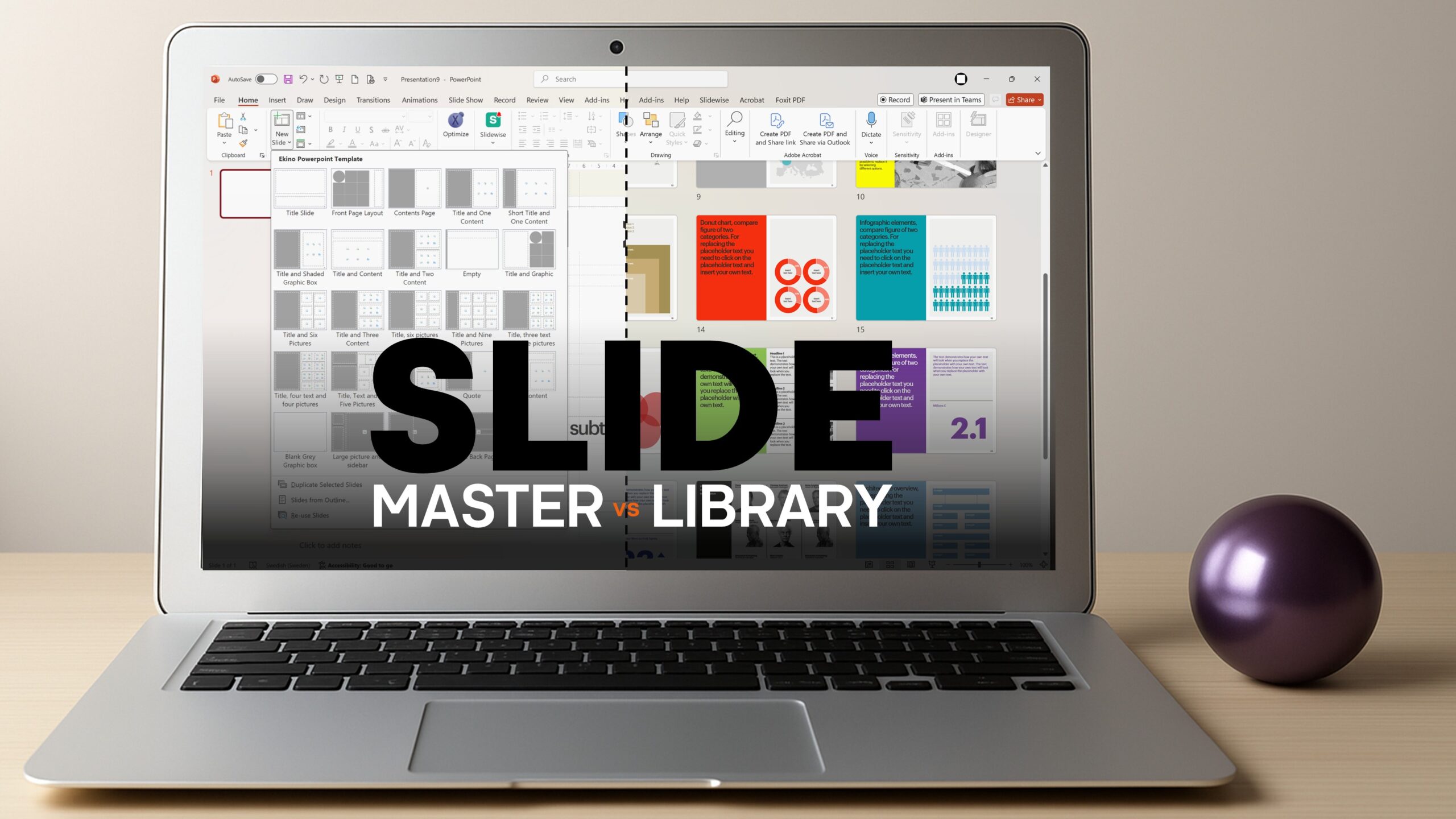
Presentations have become one of the most common tools for business communication. They are used to pitch ideas, report results, train teams, and share strategy. Because of this, organisations face the ongoing challenge of making sure every presentation is professional, consistent, and quick to produce. One of the key decisions that shapes this process is whether to rely on a Slide Master or to build a Slide Library — or to use both.
A Slide Master acts as the blueprint for a PowerPoint file. It defines fonts, colours, logos, and layouts, giving users a reliable framework where each slide follows brand rules. This means less time spent fixing formatting and more time focused on content. A Slide Library, by contrast, is a curated set of ready-made slides or modules that teams can drop into their decks as needed. This is especially useful when multiple teams need to reuse content such as “About Us” slides, product overviews, compliance information, or recurring data visualisations.
A well-built Slide Master is the blueprint of your brand inside PowerPoint.
Choosing between these two is not just a design choice — it has a direct impact on efficiency, brand perception, and governance. Without a clear system, many organisations end up with what could be called “Frankenstein decks”: a mix of old slides with different logos, mismatched colours, and inconsistent messaging. Research shows that knowledge workers spend as much as 20% of their time searching for information or recreating content that already exists, leading to wasted effort and slower delivery of business-critical presentations.
Here is a comparison of their strengths and limitations:
Slide Master
Strong brand consistency – every slide automatically inherits the correct fonts, colours, and layouts, reducing formatting errors.
Easy to use – users simply choose a layout and start adding content.
Fast for new decks – ideal when creating presentations from scratch, especially with well-planned layouts.
Scales well for small to mid-sized teams – works best where presentation needs are similar across departments.
Low maintenance effort – changes to the Slide Master instantly update all linked layouts.
Lower risk of inconsistency – provided the master is locked down and not manually altered by users.
Slide Library
Good brand consistency (if curated) – ensures teams reuse approved, up-to-date content.
Powerful for frequent reuse – perfect for standard slides like company profiles, product overviews, or compliance messages.
Speeds up deck assembly – teams can simply insert existing slides instead of building them from scratch.
Highly scalable – great for large, distributed teams sharing content across multiple regions or business units.
Higher maintenance needs – libraries require regular auditing, tagging, and version control to stay trusted.
Greater risk of inconsistency if unmanaged – users may rely on outdated or unapproved slides without governance.
The comparison highlights that both approaches solve different problems. Slide Masters excel at enforcing visual consistency across every deck, while Slide Libraries add speed by allowing users to reuse content that would otherwise be rebuilt from scratch.
Slide Masters and Slide Libraries are not competitors — they work best together.
When combined, these two tools create a powerful system. The Slide Master provides a stable foundation: layouts for titles, section dividers, content slides and closing slides that always stay on brand. The Slide Library then adds flexibility, offering pre-approved slides for standard company information, case studies, and charts that are regularly updated and available to everyone. This approach addresses the most common pain points: it prevents outdated content from creeping in, removes the temptation for teams to re-invent their own layouts, and keeps the brand looking unified across every deck.
For this to succeed, governance is key. Slide Masters should remain lean and purposeful — too many layouts can confuse users and make maintenance difficult. Libraries need clear organisation, intuitive search, and version control to ensure users always find the right slide. Assigning ownership for updates and scheduling regular reviews ensures that both the master and the library remain trusted tools, rather than outdated repositories that users avoid.
Governance and regular updates are what keep both systems trusted and effective.
Training and communication also play a crucial role. Teams should know not just how to use these tools but why they are in place. When users understand that the system saves time, reduces rework, and protects the brand, adoption becomes natural rather than forced.
Smaller organisations or teams with fairly uniform presentation needs may find that a robust Slide Master alone is enough to keep them efficient. Larger organisations, particularly those working across departments, geographies, or multiple brands, nearly always benefit from combining masters with libraries. This dual approach offers the best of both worlds: consistency where it matters most and flexibility where it is most needed.
By taking the time to plan, govern, and train users, organisations can turn presentation creation into a streamlined process rather than a bottleneck. The result is faster delivery, stronger brand presence, and more time for teams to focus on what really matters — the message itself.
Explore more...
- ±8 minutes read

- ±7 minutes read

- ±7 minutes read
- ±6 minutes read
- ±5 minutes read
- ±5 minutes read
- ±8 minutes read
- ±7 minutes read
- ±7 minutes read