Do you know your style? A guide to Word styles

Styles are the rules that keep Word documents consistent, accessible, and fast to edit. This practical guide explains Paragraph, Character, Linked and List styles, how they differ, and how to use them to avoid formatting drift and numbering issues.

Do you know your style? A guide to Word styles

Posted on

17 November 2025

Reading time

±5 minutes read

Section

Learning Guides

Industry

Multi-sector

Services

Word style framework

Let’s build styles properly.

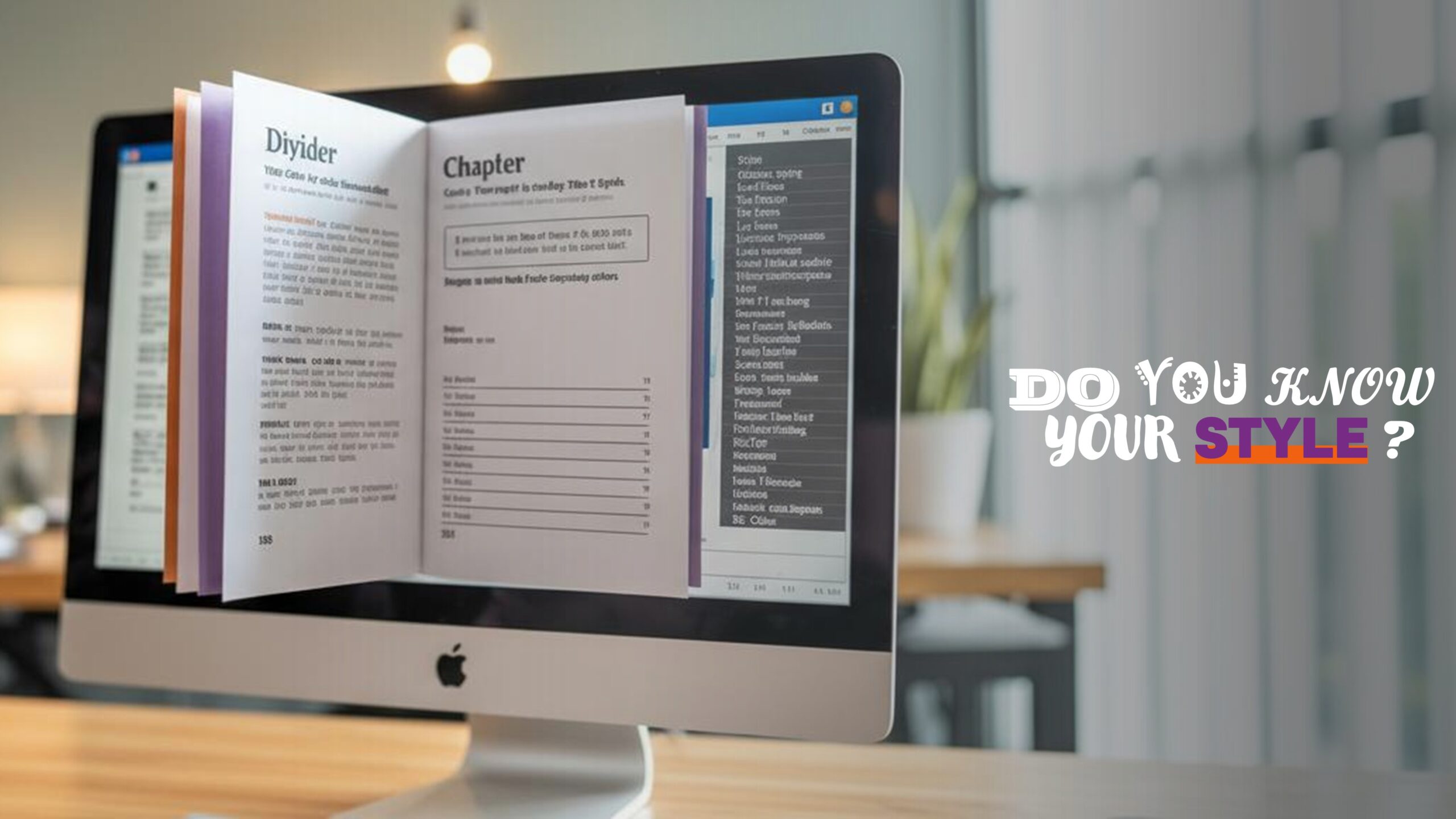
iMac on a walnut desk showing a Word report with chapter pages and a visible Styles pane, demonstrating headings, lists and layout elements.

Many users work in Word for years without fully understanding how styles work or why they matter. Styles are the engine that holds a document together. They manage structure, accessibility, spacing, numbering, and consistency, all without relying on manual formatting. When styles are ignored, a document often becomes messy very quickly. Headings behave unpredictably, spacing becomes uneven, numbering breaks, exported PDFs look inconsistent, and on shared documents the formatting absorbs every user’s habits. When styles are used correctly, Word becomes significantly easier to control. Documents look cleaner, changes are applied globally, and users no longer spend time troubleshooting formatting issues that should not have occurred in the first place.

In Word, text formatting is not just visual decoration. Styles tell Word what each piece of text represents: a main heading, a subheading, normal body text, a piece of emphasis, a caption, or a list. This structure is what allows the software to build a table of contents, maintain a clear hierarchy, and handle long documents without collapsing under manual formatting. Whether you are writing a policy, a proposal, a report, or a legal document, styles are the foundation that keeps everything stable.
Styles turn manual choices into reusable rules, so documents stay consistent, accessible, and fast to update across teams and versions.

When discussing styles, it helps to understand that text styles in Word fall into four groups. 

1.  Paragraph styles, 
2.  Character styles, 
3.  Linked styles, and 
4.  List styles. 

All four behave differently and are used for different purposes, but they work together to form the document’s architecture. When you understand these categories, it becomes much easier to identify why something looks wrong or why formatting behaves unexpectedly.

A governed style set reduces drift: headings align, lists behave, and global changes take seconds instead of hours of reformatting.

Paragraph styles define how an entire paragraph looks. This includes the typeface, size, alignment, spacing before and after, indentation, line spacing, and rules such as “Keep with next” or “Page break before.” If you click anywhere within a paragraph and apply a paragraph style, the whole paragraph takes on that formatting. This is why headings and body text must always be based on paragraph styles. They give structure, predictability, and consistent behaviour in long document.

Character styles, in contrast, apply only to the selected text. They control attributes such as bold, italic, underline, colour, small caps, or a specific font for emphasis. Character styles never alter spacing or alignment. They are ideal for brand terms, product names, cross-references, inline captions, or any portion of text that needs a repeatable visual treatment. A character style can be applied to one word, a phrase, or even an entire sentence. If a user selects a whole paragraph and applies a character style, the paragraph will visually change, but the underlying paragraph formatting remains intact. For example, the spacing, alignment, line spacing, and indentation still come from the underlying paragraph style. This distinction is important because it prevents users from accidentally breaking the structure of a document.

Linked styles behave as either paragraph styles or character styles depending on how they are applied. If you click within a paragraph, they format the entire paragraph. If you select only a portion of text, they apply character-level formatting. They were originally designed to help users transition between formatting methods, but in corporate environments they can introduce confusion because they blur the line between structure and emphasis. Many organisations avoid them entirely. However, understanding them is useful because users sometimes encounter them in legacy templates.

List styles define bullets, numbering, indentation, and multi-level hierarchies. They are the rules that keep lists stable. When list styles are defined properly, Word knows exactly how each level should behave. Without a list style, users often end up with numbering that restarts randomly or bullets that shift to different positions. List styles are essential in proposals, reports, and legal documents, where hierarchy and clarity carry weight

Styles separate structure from appearance, which is why tables of contents, numbering, and page flow remain stable in long documents.

How to tell them apart

Below is a clearer way to differentiate the four style types, including a correction to your earlier point:

Paragraph style:
Changes the entire paragraph and controls spacing, alignment, indentation, and hierarchy. If the user selects the whole paragraph and applies this style, all structural settings will change.

Character style:
Changes only visual formatting such as bold, colour, small caps, or a different typeface. If applied to a whole paragraph, it will change only the visual attributes, not spacing, indentation, or alignment. The paragraph still behaves according to its underlying paragraph style.

Linked style:
Acts as a paragraph style when applied via the cursor and acts as a character style when applied to a selection. The behaviour depends entirely on how it is applied.

List style:
Controls bullets, numbering, nesting, and indentation levels. It affects structure, not inline visual formatting

Fewer, well-named styles improve adoption; clarity beats quantity, and governance beats ad hoc formatting every single time.

Whether you use a native Word template or a bespoke template created by ZOARC Creative, styles are essential for clean, predictable, and brand-aligned documents. They are the equivalent of road rules. When you follow them, the journey is smooth and the document behaves as intended. If your organisation requires custom style frameworks, branded heading families, or structured style hierarchies that support accessibility and long-form publishing, ZOARC Creative builds tailored Word, PowerPoint, and Excel templates designed for accuracy and ease of use. Happy to help if you would like guidance or a bespoke setup for your team

Explore more...

Off-brand documents quietly tax your team—lost time, re-work and weaker trust. This....
Microsoft 365 has unveiled redesigned icons across Word, PowerPoint and Excel, signalling....
AI can draft and refine at speed, but your brand lives inside....

Leave a Reply

Your email address will not be published. Required fields are marked *